Traveler eSIM Installation Guide
Google Pixel Installation Steps
Note: Do not interrupt the installation process. Before installation, ensure the device has a stable internet connection.
Step 01
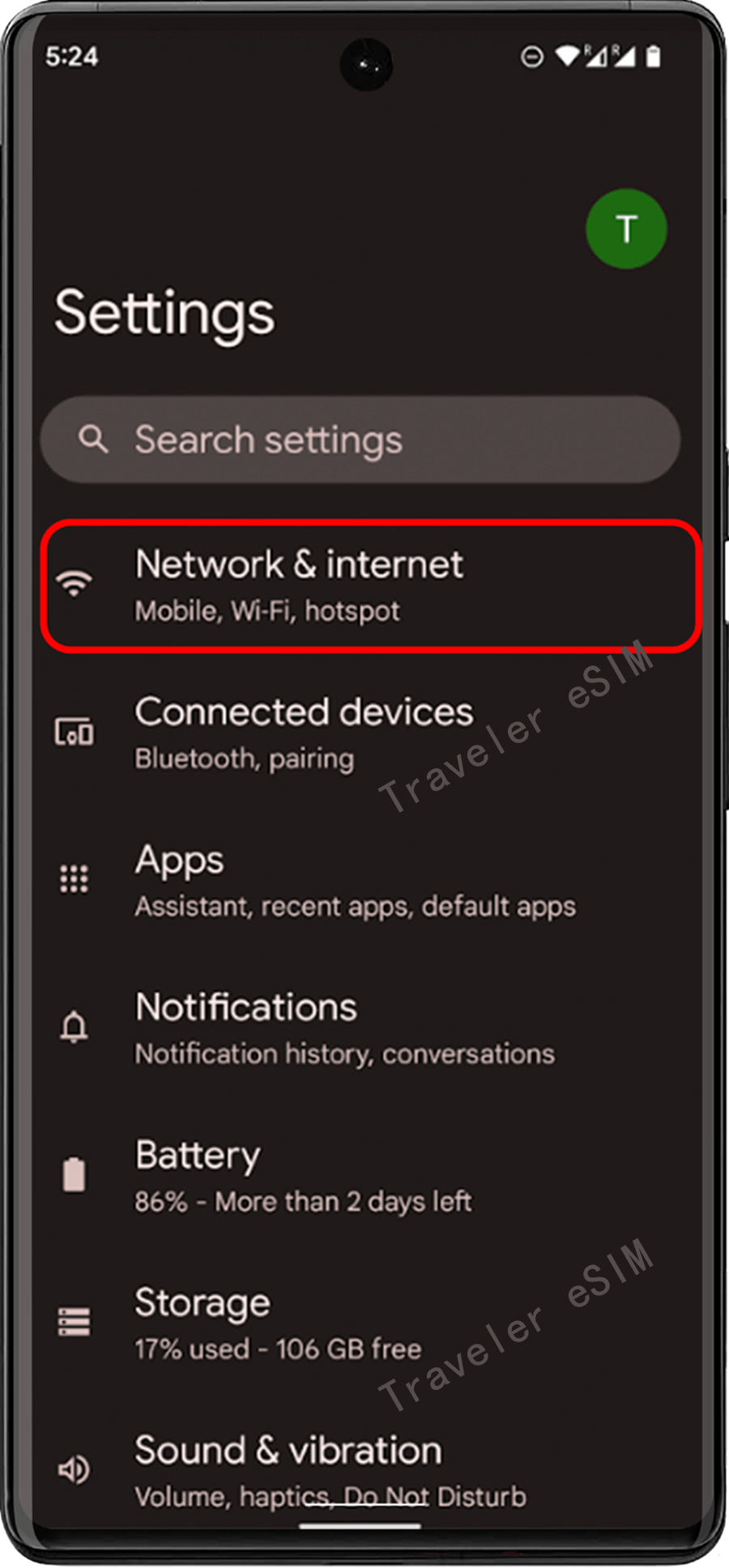
① Go to the device's "Settings" and tap "Network & Internet".
Step 02
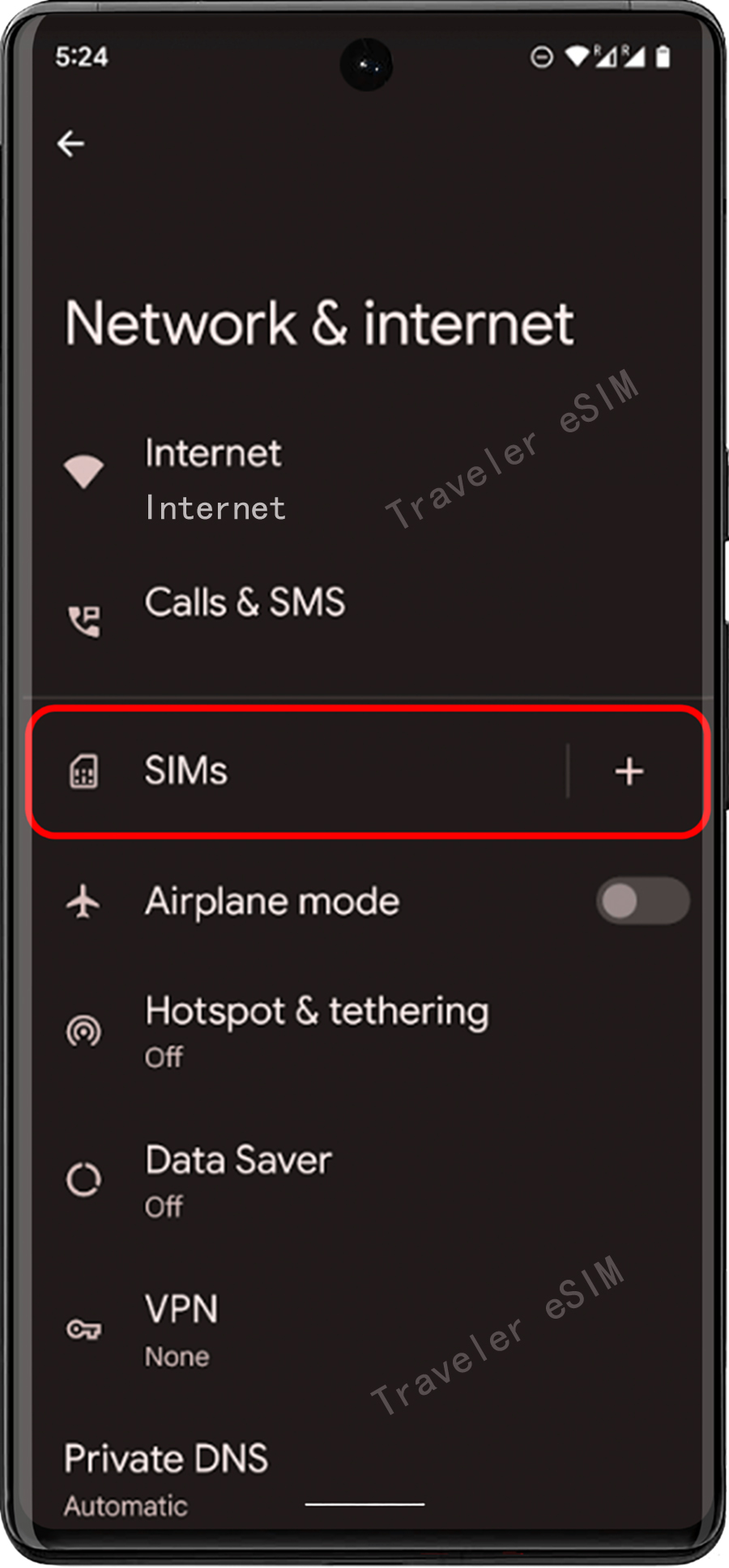
② Find "SIMs" and tap the "+" add button.
Step 03
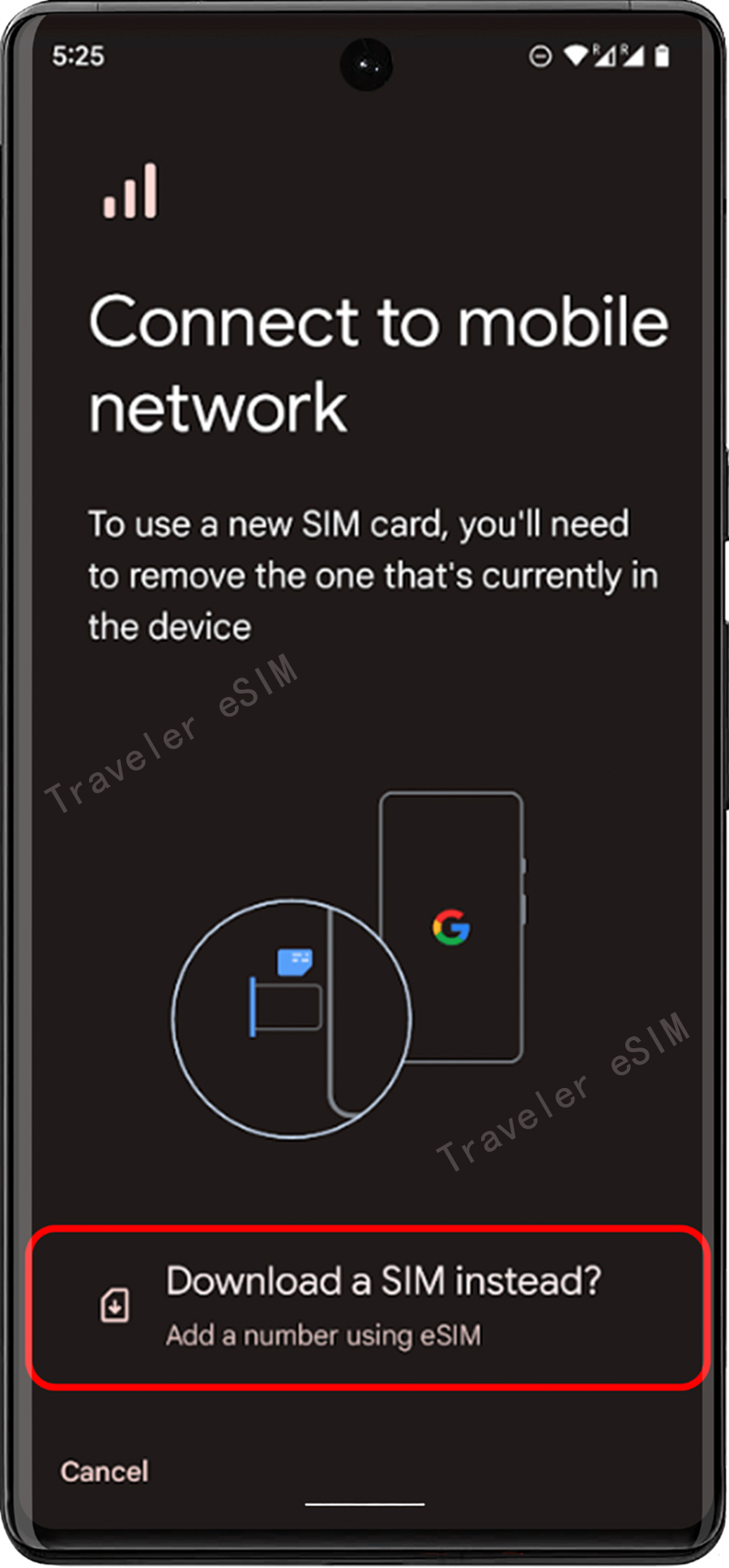
③ Tap "Switch to downloading SIM?"
Step 04
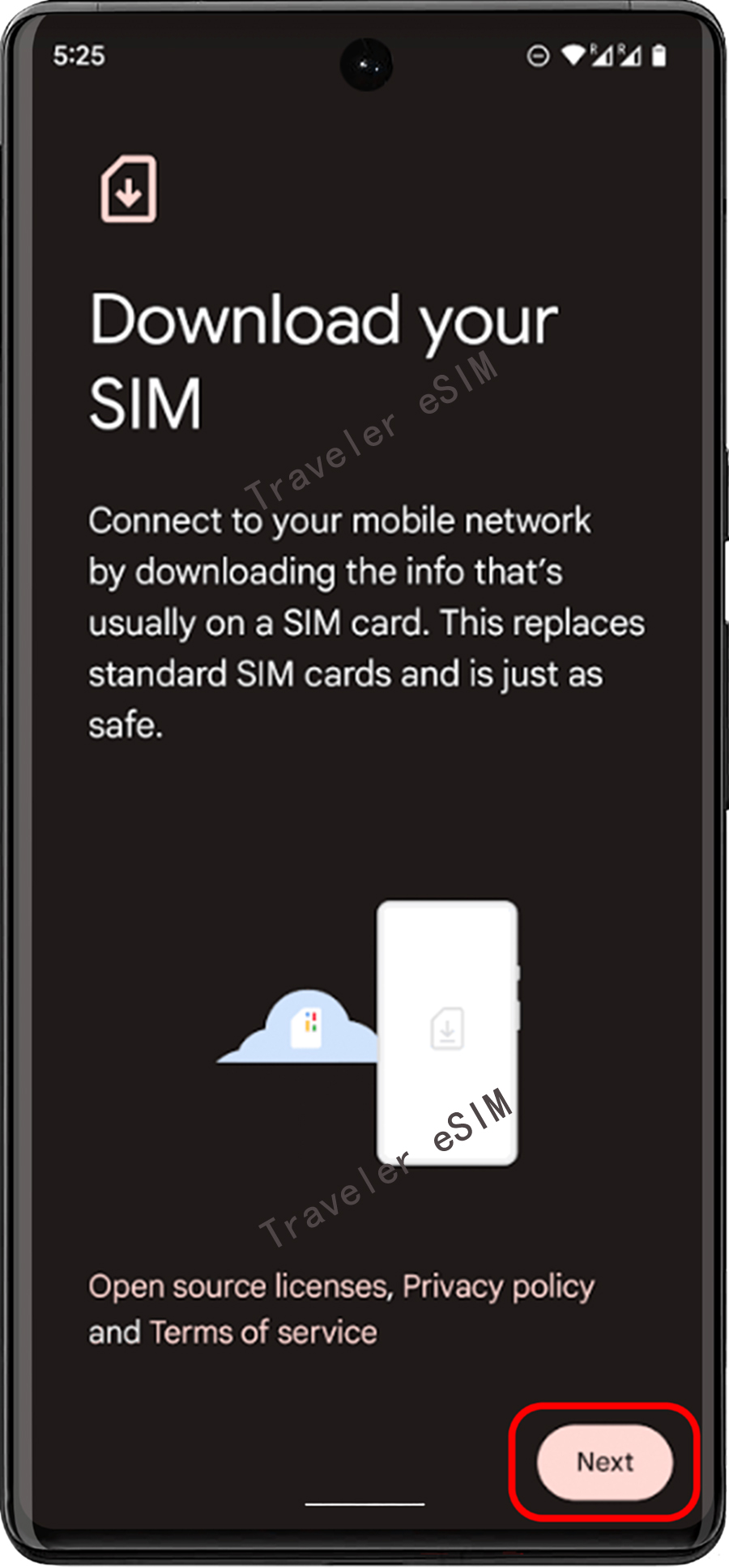
④ Navigate to the page displaying the eSIM download, then tap the "Next" button. The device will check the network information.
Step 05
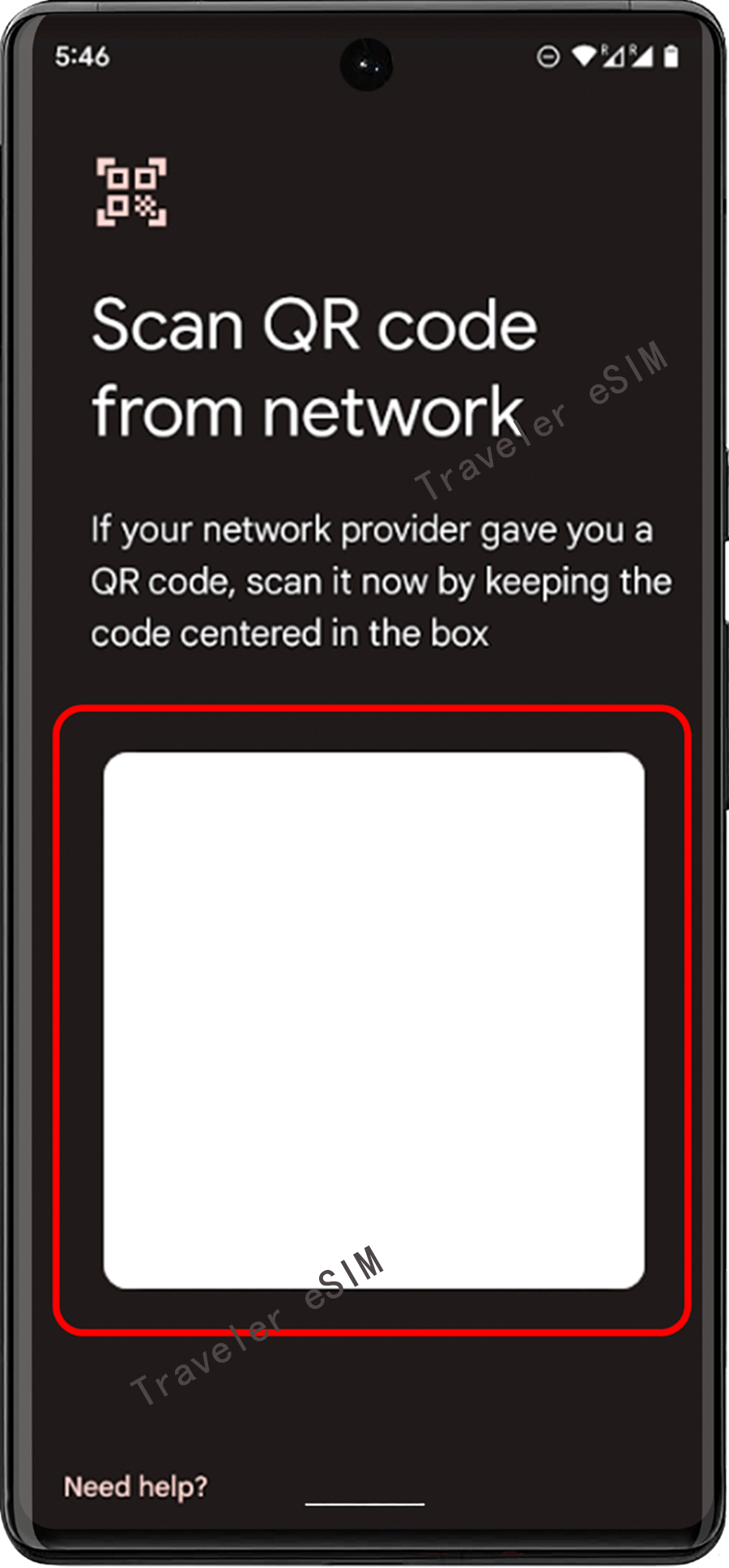
⑤ Display the QR code on another device or use a printed one, then scan it with your device and ensure the QR code area is within the guide lines to avoid incomplete download.
Step 06
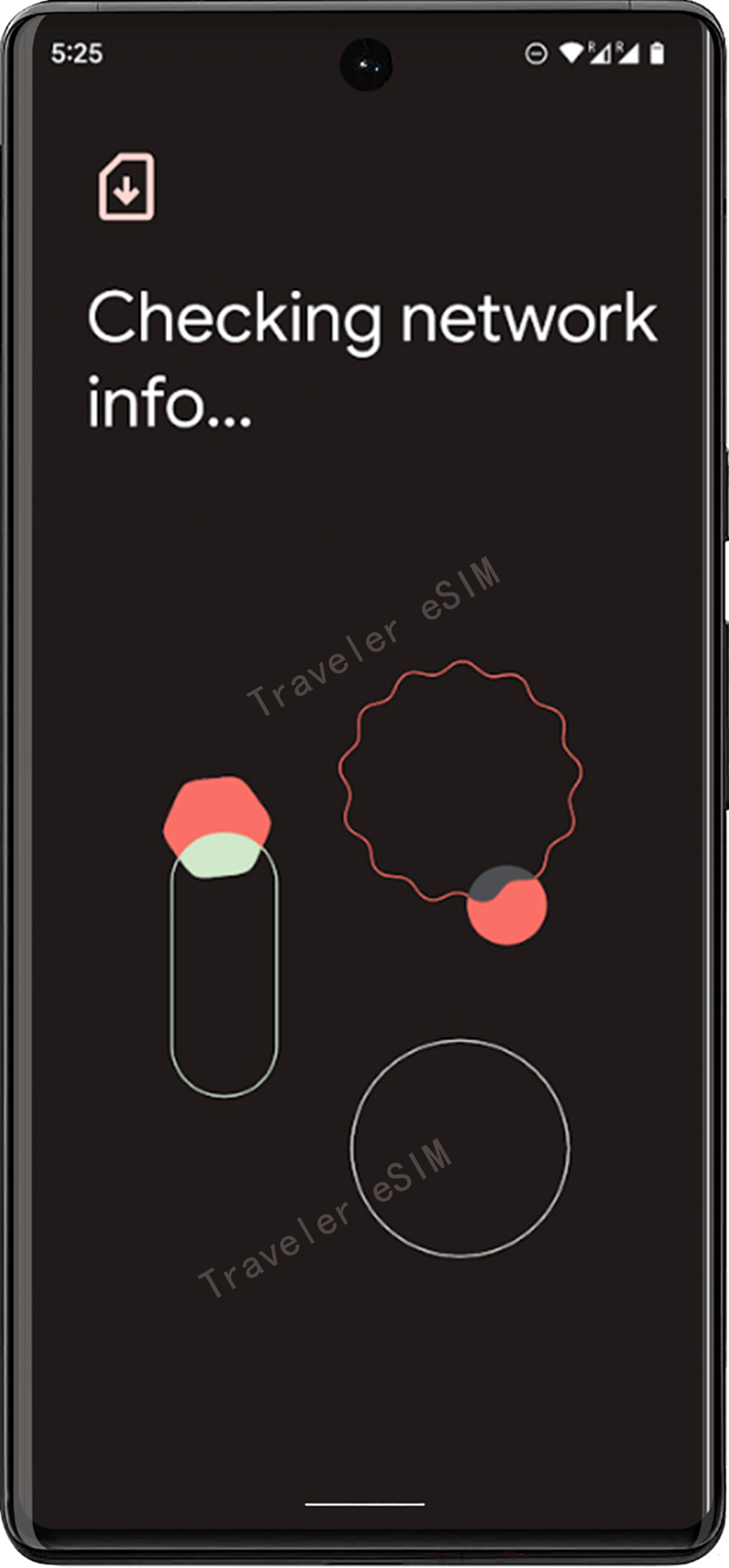
⑥ After the QR code is scanned successfully, the network will be checked again.
Step 07
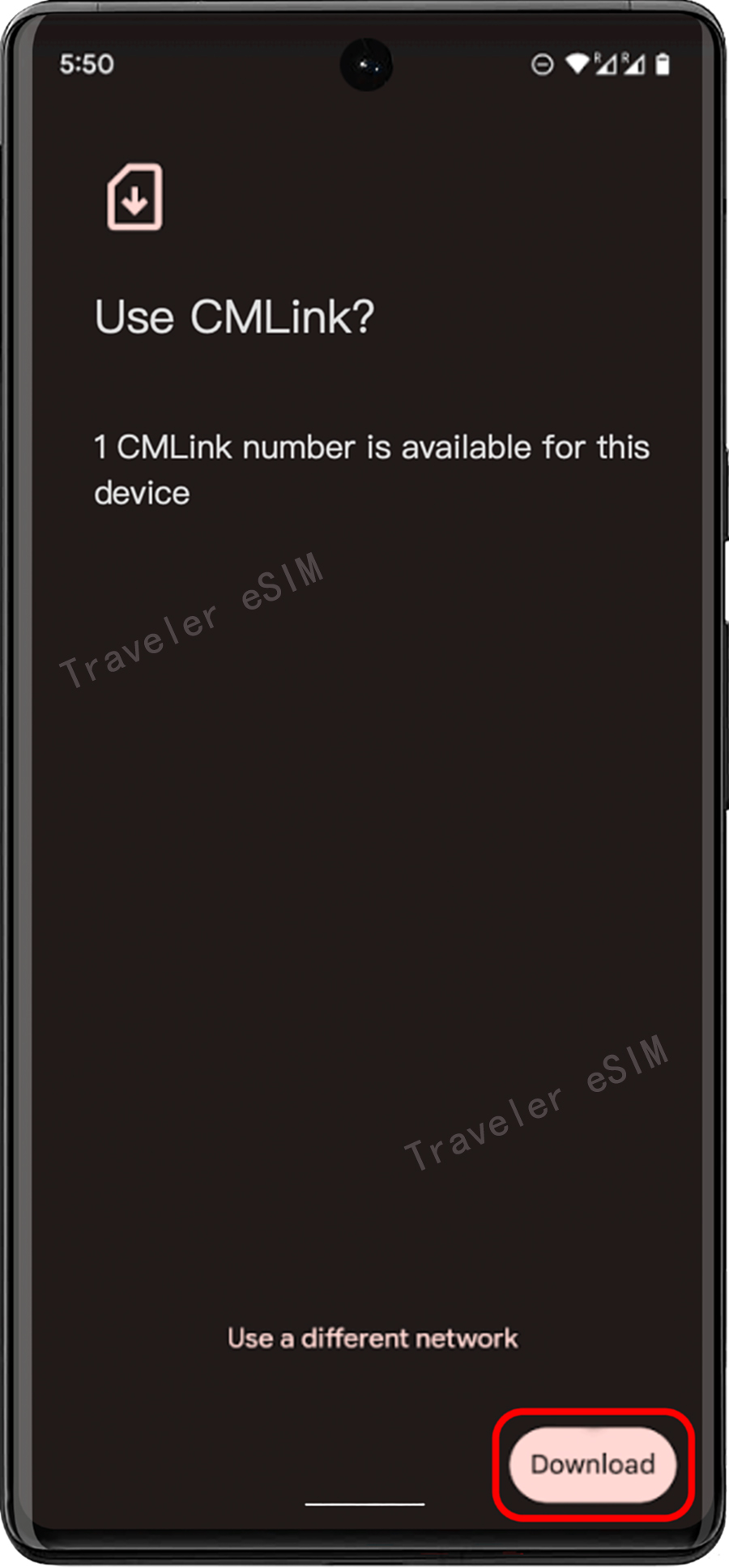
⑦ After checking the network, tap the "Download" button and confirm if this is the eSIM you want to add.
Step 08
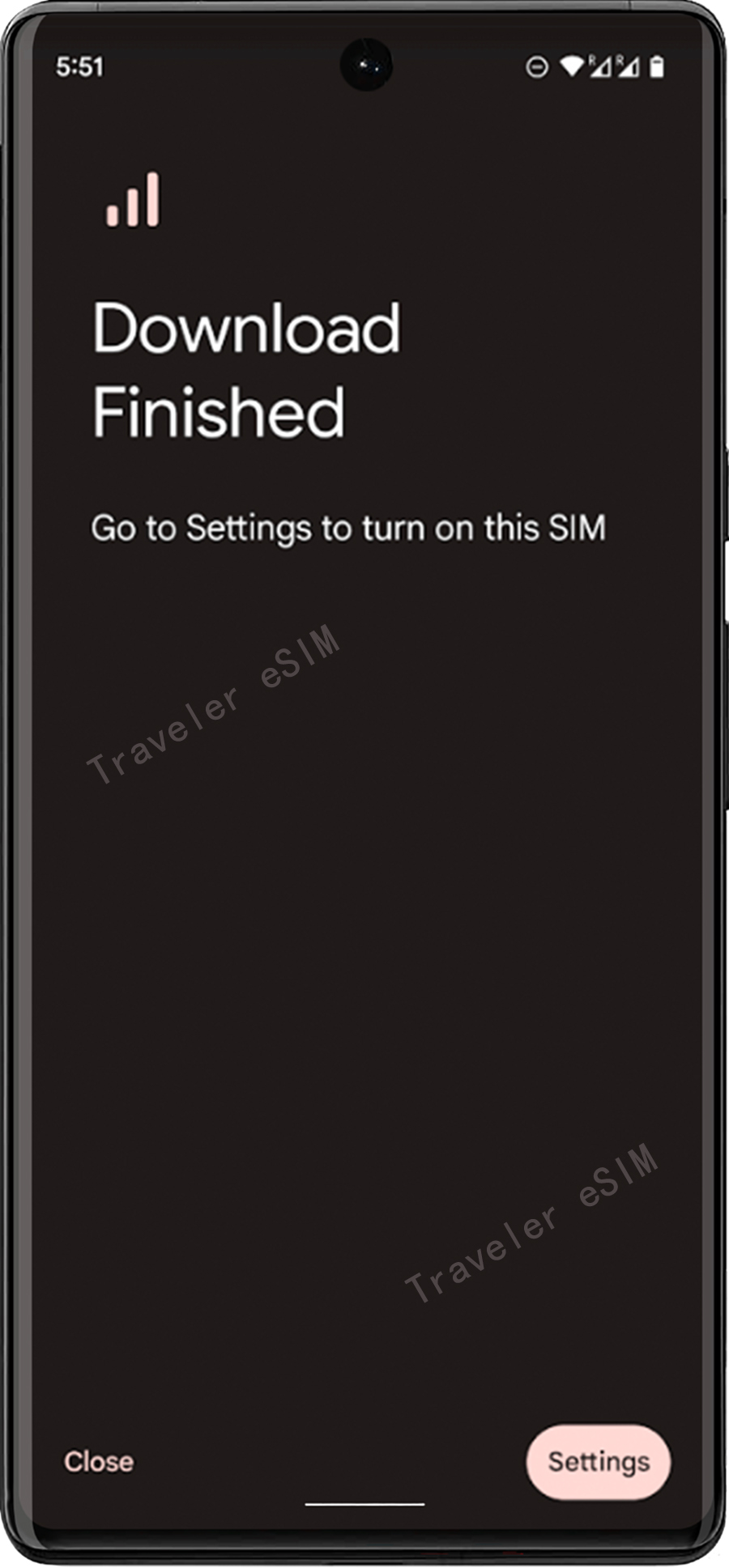
⑧ After successful download and installation, you will see the "Download Complete" page.